Klackey keeps the text and formatted content you reuse within easy reach: save it once, organize it into folders, and retrieve or paste it from any application. It's built around four things working together rather than four separate apps:
A clipping repository: organize your frequently-used text and formatted content into folders, tag it, pin your favorites, and export or share a folder with a coworker when needed.
Clipboard capture: quietly keeps a searchable history of the text, images, and other supported content you copy, so something you copied five minutes (or five days) ago is never really gone.
Text expansion: give a clipping a short abbreviation and type it in any application to instantly expand it into the full formatted content, no switching to Klackey, no copy-paste round trip.
A secure folder: one dedicated folder encrypts sensitive content at rest, tied to your Windows or macOS login, and keeps it masked everywhere it appears; pair it with an abbreviation to type a password or credential anywhere without ever displaying it. It's a protected place for sensitive text, not a replacement for a dedicated password manager.
Install and first launch
Download the Windows or macOS build from klackey.com and run the installer. There's no account to create and no credit card required: Klackey opens straight into a 14-day, full-featured trial.
The first time you open it, Klackey shows its terms (EULA/Privacy Policy) once; agreeing is required before the app continues. A few sample "Welcome" clippings and notes are pre-loaded so the app isn't empty on first look; a Remove Welcome data button in the sidebar clears just that starter content whenever you're ready, without touching anything you've added yourself.
Your first five minutes
A fresh install already has real, working sample content loaded — a Welcome folder with a few example clippings (including a live ;sig abbreviation you can actually try), a Templates folder, and a Welcome binder with a sample note. It's there to explore and test with, not just read: click into an example clipping, try the abbreviation, check off an item on the sample note's checklist, see a tag filter the list. Nothing here is precious — when you're done, Remove Welcome data in the sidebar clears it out in one click and never touches anything you've created yourself.
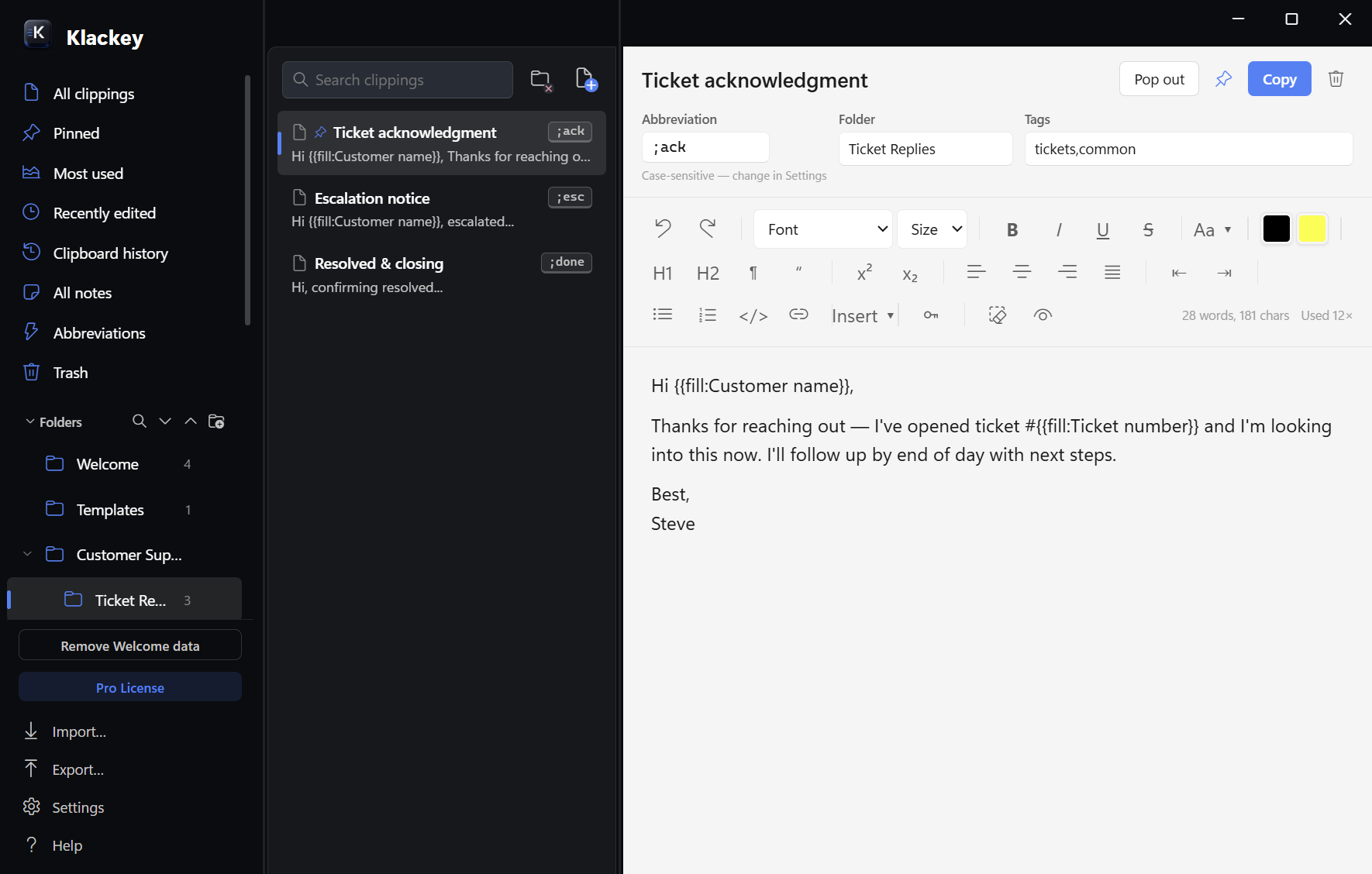
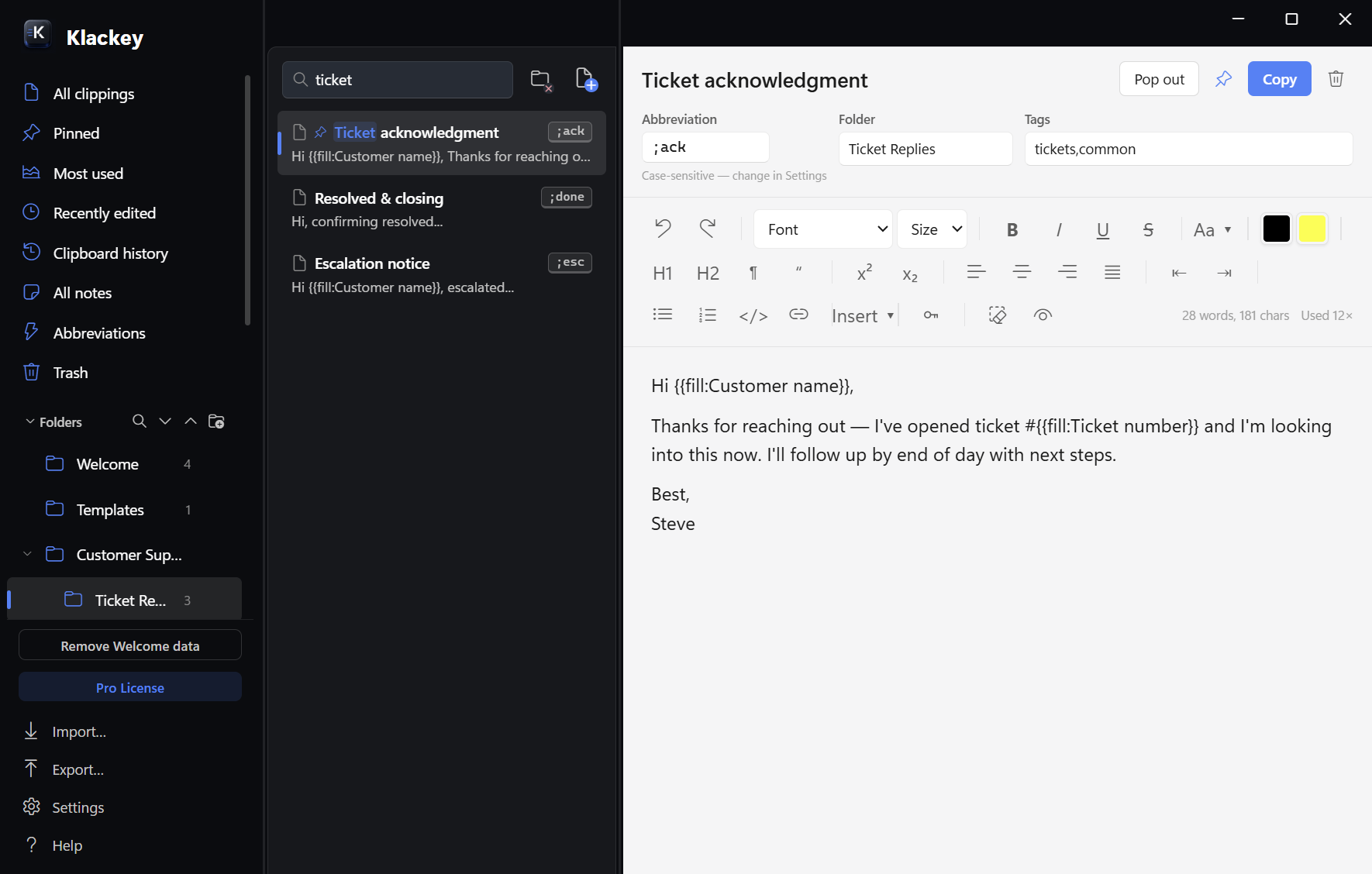
Folders hold your clippings on the left. Click "+ New" to create one, or copy something formatted and paste it straight into the editor. Give a clipping an abbreviation (like ;sig) and typing that abbreviation in any other app (a text editor, a browser, a ticketing tool) expands it into the full formatted content, no need to open Klackey at all.
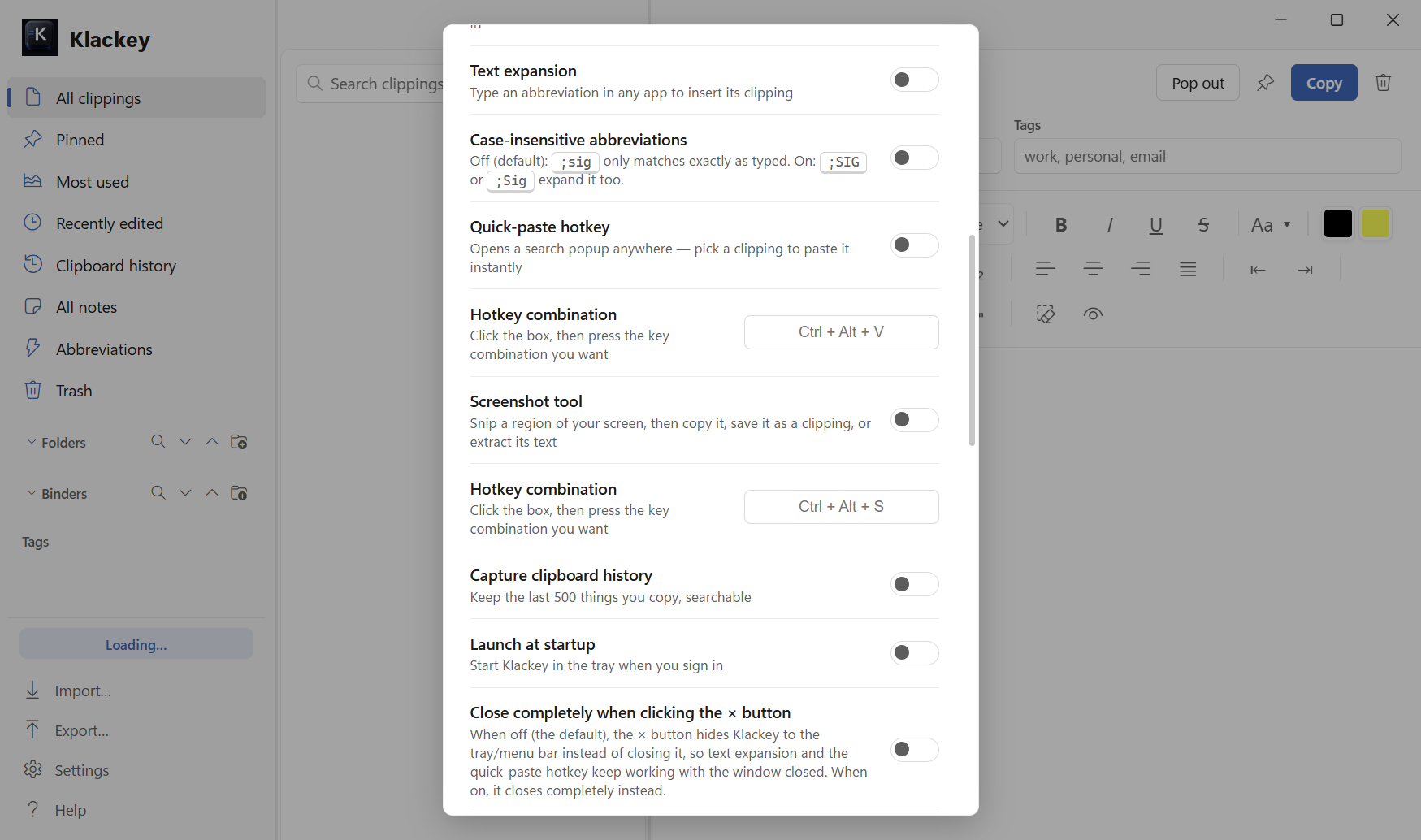
The quick-paste hotkey (Settings, default Ctrl+Alt+V / ⌘+⌥+V on macOS) pops up a search-and-paste box instead, if you don't remember the abbreviation.
The main window: folders on the left, your clippings in the middle, and the editor on the right.
Importing your existing content
Moving from another tool? You don't have to start from scratch. Import… in the sidebar footer brings in what you already have, and it always adds to your library, it never overwrites or removes anything already there:
A Firefox Clippings backup, folders and shortcut keys carried over automatically — see Firefox Clippings.
A CSV export from almost any other app (TextExpander, Ditto, ClipClip, or a spreadsheet) — see CSV.
OneNote notebooks, .onepkg or .one files (Windows only) — see OneNote.
Full detail on each format, including exactly what's preserved and where an import lands, is in Import and sharing further down this page.
Core workflows
Clippings
A clipping is a saved piece of formatted text: a reply, a signature, a code snippet, a template. Click one to open it in the editor on the right; changes save automatically as you type.
Code blocks (</> button): Enter inserts a new line and stays in the block; press Enter again on a blank line to exit it.
Tab indents/outdents inside a list, inserts a real tab inside a code block, or a visible indent in plain text.
Ctrl/⌘+Z and Ctrl/⌘+Y undo and redo, a dedicated history per clipping, not the browser's built-in undo.
The Aa button changes the case of whatever's selected (UPPERCASE, lowercase, Title Case) without disturbing bold/italic/links in the selection.
A live word/character count shows in the bottom-right of the toolbar once a clipping is open.
Right-click → Paste as Plain Text pastes whatever's on your clipboard without its original formatting.
Right-click → Paste Special pastes your clipboard's text transformed: UPPERCASE, lowercase, Sentence case, Title Case, or iNVERTED cASE.
The key icon button generates a strong, random 20-character password (always includes an uppercase letter, a lowercase letter, a digit, and a symbol, and skips easy-to-misread characters like 0/O). Use password inserts it at the cursor and copies it to your clipboard in one click.
The eye-icon Preview button shows the clipping with none of Klackey's own styling applied, closer to how it may look once pasted somewhere else.
Every clipping is Rich text by default, but can be switched to Plain text (a toggle in the editor header) so it always pastes without formatting, no matter what's on the clipboard when it lands. A plain-text clipping also unlocks a {{cursor}} dynamic snippet token that puts your cursor exactly where you placed it, right after pasting — see Dynamic and fillable snippets. A clipping containing an image or table can't switch to Plain text, since neither survives as plain text.
All clippings and All notes sort newest-first by default, so whatever you just created or edited is right at the top. A toolbar button switches to oldest-first, and All clippings adds an "Images only" filter next to it — the same idea as clipboard history's own sort/filter, just not remembered between launches. If you'd rather everything stayed alphabetical instead, Settings → Functionality → "Sort alphabetically" overrides both of these.
Clipboard history
Clipboard history (Settings → Functionality → "Capture clipboard history") keeps the last 2,000 things you copy (text, images, and other supported clipboard formats) without you having to do anything. Hover an item for a delete button; deleting shows an "Undo" toast and is instantly recoverable via Trash if you miss the window. "Clear all" moves everything to Trash rather than deleting it outright.
A sort toggle at the top of the history list switches between newest first (the default) and oldest first. A filter button next to it opens a menu combining two filters at once: a date range (All time, Today, Yesterday, This week, This month, Last 3 months, Last 6 months, or This year) and an "Images only" option that narrows the list down to copied images and screenshots. Either or both can be active together, and the button shows a small badge whenever a filter other than "All time" is applied.
Settings → Functionality → "Remove duplicate history entries" (off by default) keeps history free of repeats: copying something that's already sitting in your history removes the older copy and keeps only the newest one, instead of history growing a second entry for it. Copying the exact same thing twice in a row never adds a duplicate either way, on or off (see Images aren't captured).
Settings → Functionality → "Search inside screenshots and images" (on by default) makes clipboard history search reach inside pictures too, not just typed and pasted text; see Screenshot tool and OCR for how that recognition works.
Any history item can be saved as a permanent clipping (or note) once you decide it's worth keeping.
Screenshot tool and OCR
Press Ctrl+Alt+S (⌘+⌥+S on macOS) from anywhere to snip a region of your screen. Once you've selected a region, three options appear:
Copy — copies the image to your clipboard, ready to paste anywhere.
Save Clipping — saves the image as a new clipping, searchable and organizable like any other.
Extract Text — runs on-device OCR on the selected region and copies the recognized text to your clipboard. Nothing is uploaded anywhere; recognition happens entirely on your computer.
On a multi-monitor setup, the tool only captures the screen your mouse cursor is on by default: move your cursor to the monitor you want, then press the hotkey. Turn off "Capture only the monitor under your cursor" in Settings → Functionality to go back to capturing every monitor at once, so you can drag-select across any of them.
Screenshot tool has its own on/off toggle and hotkey, right next to quick paste's.
Settings → Functionality → "Screenshot tool" turns the feature on or off, and its own hotkey field (separate from quick paste's) lets you pick a different key combination.
Extract Text is a manual, one-off action for a specific region right now. Separately, the same on-device recognition also runs automatically in the background on every screenshot you save as a clipping and every image you copy anywhere else, so text that only ever existed inside an image (a code shown in a screenshot, an error dialog, a scanned page) still turns up later in clipboard history search, even if you never click Extract Text yourself. Settings → Functionality → "Search inside screenshots and images" (on by default) turns this background recognition off if you'd rather it didn't run; see Clipboard history.
Text expansion
This is the part of Klackey that runs quietly in the background even when the window isn't open. Any clipping with an abbreviation set (Settings → Functionality → "Text expansion" turns the whole feature on/off) is watched for system-wide: type it in a text editor, a browser, a ticketing tool, anywhere Windows or macOS accepts keyboard input, and the moment you finish typing it, Klackey erases the abbreviation and pastes the clipping's full formatted content in its place.
Abbreviations need at least 2 characters; a single character would fire far too often on ordinary typing.
It matches on the end of whatever you've been typing, so ;sig fires whether it's the whole thing you typed or the tail end of a longer word.
By default, matching is case-sensitive: ;sig won't fire if you type ;SIG. Settings → Functionality → "Case-insensitive abbreviations" makes any capitalization trigger it.
If you save an abbreviation that overlaps with an existing one (say, sig and mysig), Klackey warns you when you save it; the shorter one always wins when you type the longer one. It still saves either way; the warning is just so you know.
It works by briefly placing the clipping on your clipboard and simulating Ctrl+V, then restoring whatever was on your clipboard before; your existing clipboard content isn't lost, just used for a moment.
Some applications (certain rich text editors with unusual focus handling) may not reliably accept the simulated paste, a limitation of how those specific apps manage keyboard focus, not something Klackey can fully work around.
A short "klack" sound plays whenever an abbreviation or quick-paste actually pastes something (also on the Screenshot tool's Copy/Save and a successful Extract Text). Settings → Functionality → "Play a sound on expansion" (on by default) turns it off if you'd rather it stayed silent.
On macOS, text expansion needs the Accessibility permission (System Settings → Privacy & Security → Accessibility); Klackey prompts for this itself the first time it's needed.
Dynamic and fillable snippets
A clipping can contain live tokens that get computed fresh every time it's actually pasted (via an abbreviation or quick-paste), instead of a fixed value baked in when you wrote it. For example:
Hello {{fill:Customer Name}},

Thank you for contacting us about {{fill:Issue}}.

Your reference number is {{fill:Reference Number}}.
Typing this abbreviation prompts for Customer Name, Issue, and Reference Number, in order, then pastes the finished message with your answers filled in.
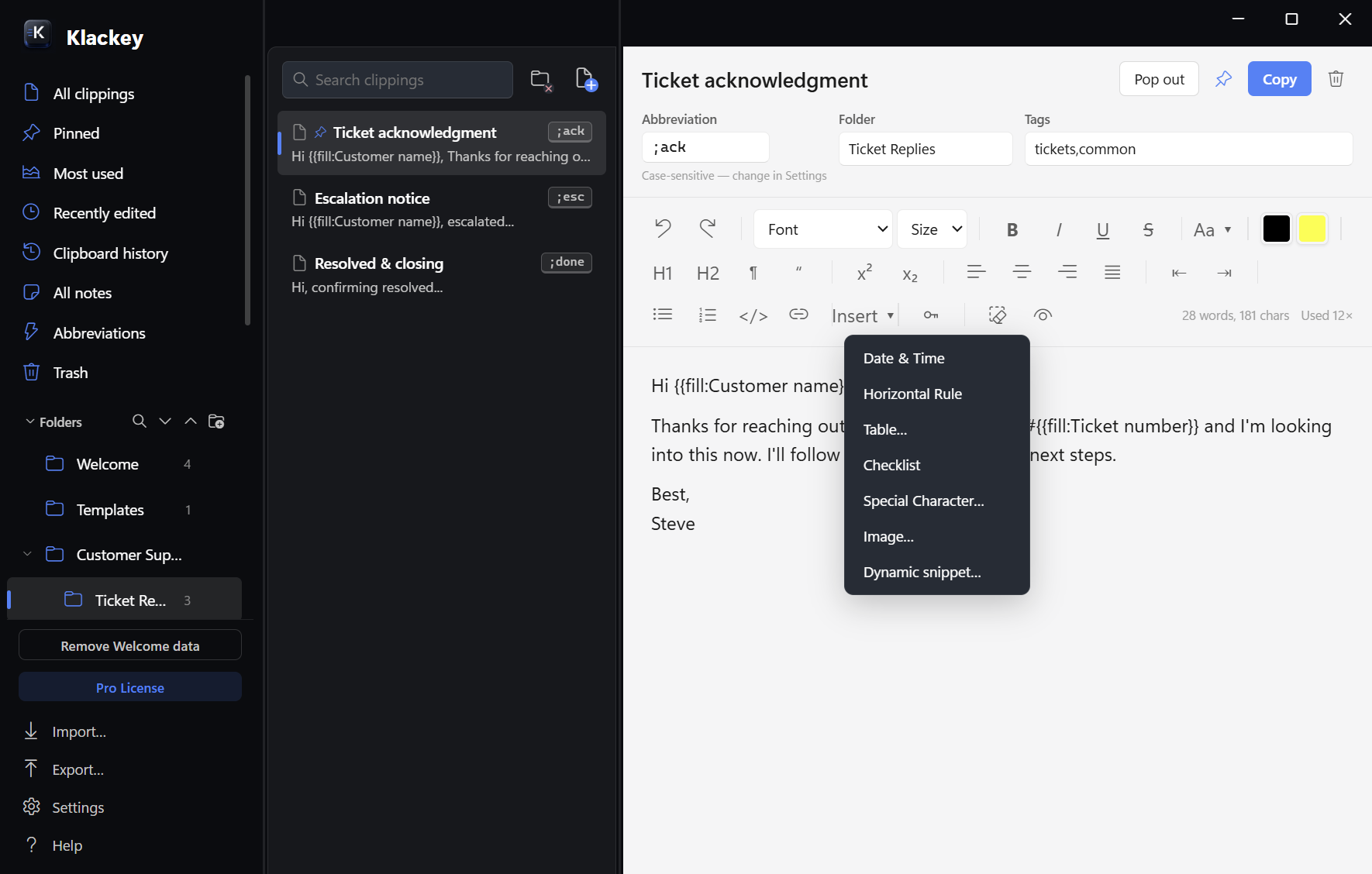
Insert menu → Dynamic snippet… types the token in for you, or just type it directly:
{{date}} / {{time}}: today's date or current time.
{{clipboard}}: whatever's on your clipboard right before this paste happens, formatting included.
{{counter}}: an auto-incrementing number, separate per clipping (starts at 1 the first time it's used), handy for ticket numbers, invoice numbers, anything sequential.
{{uuid}}: a random unique ID.
{{random:option1|option2|option3}}: picks one of the pipe-separated options at random each time.
{{fill:Field name}}: pauses the paste and pops up a small prompt asking for a value. Reuse the exact same field name (matching is case-insensitive, and leading/trailing spaces are trimmed) more than once in one clipping and you're only asked for it once; the value fills in everywhere it appears. Pressing Escape (or clicking away) cancels the whole paste; for an abbreviation, nothing gets erased, and the {{counter}} token (if the clipping has one) does not advance on a cancelled paste.
{{cursor}}: leaves your cursor exactly where the token was, right after the paste lands — only works on a Plain text clipping (see Clippings); on a Rich text clipping it's left as inert literal text instead, since a formatted paste can reflow in ways Klackey has no way to walk the cursor back through reliably.
The Insert menu: dynamic snippets, tables, checklists, and more, right from the toolbar.
Tokens use double curly braces because clipping content here skews toward code/config/JSON snippets, where a lone { or } is completely ordinary text; doubling it cuts down on accidental collisions. To paste a literal {{ or }} without triggering a token, break it up with a zero-width character or any other character in between, then remove that character after pasting.
Dynamic snippets work the same way whether the clipping is triggered by its abbreviation or picked from the quick-paste popup. Copying a clipping manually (Ctrl+C from the list, or the Copy button) does not resolve tokens; it copies the literal template text, since there's no "paste destination" yet to fill values in for.
Quick paste
Press the hotkey (default Ctrl+Alt+V on Windows, ⌘+⌥+V on macOS) anywhere to search and paste a clipping without opening Klackey.
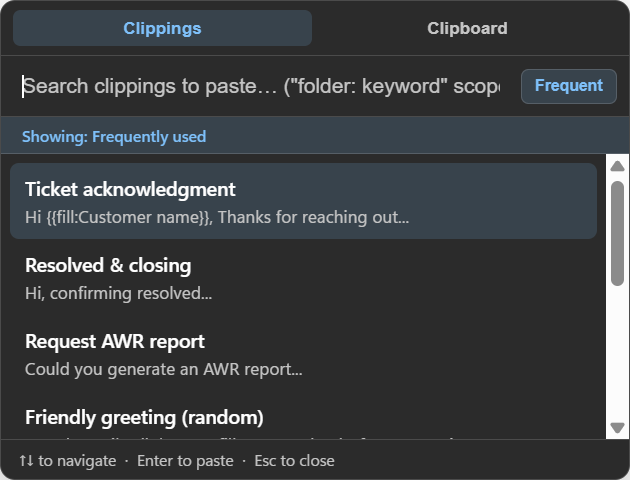
Search and paste from anywhere: the popup always starts fresh each time you open it.
Two tabs at the top switch between Clippings and Clipboard; the Clipboard tab searches and pastes from your recent copies the same way. A "Frequent" / "Recent" toggle next to the search box switches how results are ranked when you haven't typed a query yet. Once you start typing, it always ranks by relevance. The same prefix: keyword folder-scoped search from the main window works here too, and dynamic snippets (including {{fill:...}} prompts) work from here as well.
Search
By default, typing in the search box searches everywhere, regardless of which folder or view you're in; Settings → Functionality → "Default search" can flip this so a search starts scoped to whichever folder you're browsing instead (see Search preferences).
Matched words are highlighted right in the results list.
A "T" button next to the search box (in the main window and the quick-paste popup) limits matching to titles only, instead of titles, content, and tags — click it again to search everything. The main window and the popup remember this choice separately.
Typing prefix: keyword (for example 12.2: refund) searches only inside folders whose name starts with "12.2" for "refund", no matter which folder you're currently in. Search ignores hyphens and spacing in compound terms, so Load-balancer, Load balancer, and Loadbalancer all match each other, regardless of which form you type or which form is stored.
Organizing
Folders and tags
Drag a folder by its name (not the little arrow) to reorder or nest it under another folder. Drag a clipping onto a folder in the sidebar to file it there, or onto "All clippings" to unfile it.
A folder with subfolders shows a small arrow to expand/collapse just that one folder. Two more buttons next to the "Folders" heading expand or collapse every folder at once. Every folder row also has a ⋯ button on hover for Rename, New subfolder, Move up/down, Move out of folder, and Delete, the same options right-click gives you.
Tags are freeform labels (comma-separated in the Tags field) that show up under a Tags heading in the sidebar; clicking one filters down to everything using it, regardless of which folder it's actually filed in.
A small search icon (🔍) next to the "Folders" and "Binders" headings jumps straight to one by name instead of scrolling a long, nested tree.
Notes and binders
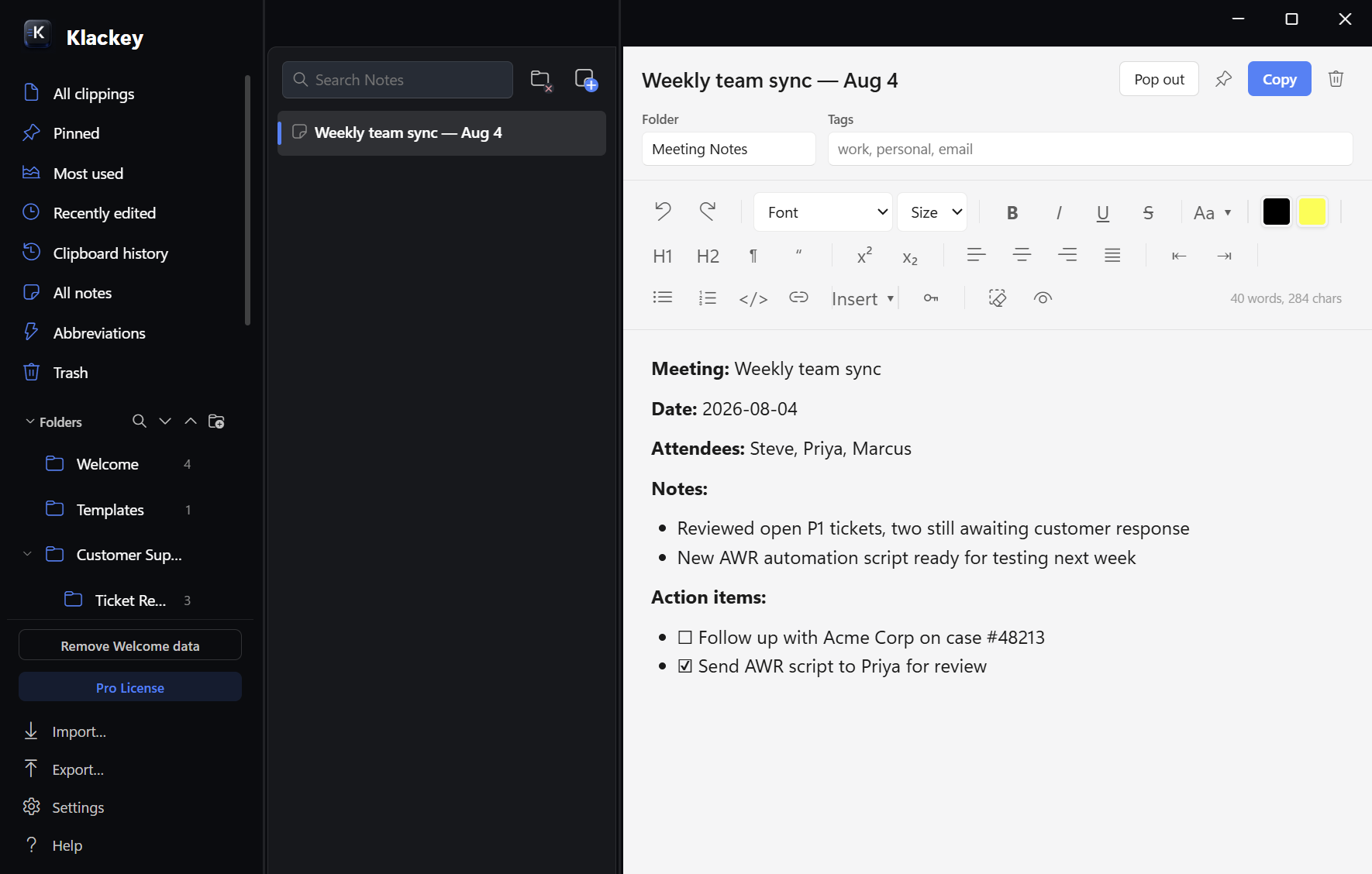
Notes are a separate space from Clippings, meant for longer-form writing rather than reusable snippets: meeting notes, running to-do lists, anything you're actively working in rather than pasting elsewhere. Click Notes in the sidebar to switch into it; the same editor, search, and formatting tools work exactly like they do for clippings.
A note inside a Binder: headings, lists, and checklists, all with live checkboxes.
Notes are organized into Binders instead of folders, a separate tree with its own book icon, so the two structures never mix. A note can only be filed into a binder, and a clipping can only be filed into a folder. If you don't use this space, Settings → Functionality → "Binders and Notes" hides it from the sidebar entirely (see Optional features).
A Duplicate button in the note header makes an identical copy in the same binder (named with a " (copy)" suffix) and selects it — handy for a recurring note you'd rather start from an existing one than a blank page.
Note templates
A template-picker icon next to "New note" starts a new note pre-filled with real structure instead of a blank page — 17 to start, covering meetings, projects, personal use, and recurring trackers, plus a dedicated Call/Support Note. Dates inside a template are filled in with today's actual date the moment you create the note from it, not whenever the template itself was written.
Templates live as ordinary notes inside their own Note Templates binder, pinned to the bottom of the Binders list — edit any of them, add your own, or organize them into your own folders; the picker always mirrors whatever's actually there. This binder stays out of All notes so your real notes aren't buried under the starter templates (search still finds a template by name directly).
Right-click the Note Templates binder → "Share as a template pack…" exports it, folders and all, ready to send to someone else; importing their file merges it into your existing Note Templates instead of creating a second, rival copy.
Pinned and most used
Pin anything you reach for constantly; it shows up in its own quick-access view near the top of the sidebar. Most used tracks what you've copied or expanded most, automatically, with no setup.
Recently edited is a smart folder showing whatever you've created or changed in the last 30 days; a clipping ages out of it 30 days after its last edit, not on a fixed schedule, so it's always a rolling window rather than a list that empties out all at once.
Abbreviations is another smart view, listing every clipping and note that has an abbreviation set, regardless of which folder or binder it's actually filed in, handy for finding one you've forgotten the location of, or double-checking nothing's silently claiming an abbreviation you didn't expect.
Settings → Functionality has a checkbox for each of these four, if you'd rather hide any you don't use — All clippings and Trash always stay, since those aren't optional. Clipboard history and Abbreviations also hide themselves automatically whenever clipboard history capture or text expansion is turned off, since there'd be nothing to show either way.
Stats and Badges
Stats (sidebar) shows a running total of how many times Klackey has done the typing for you, an estimate of characters and time saved, and your 10 most-used clippings with a bar showing how each stacks up against your single most-used one. Everything shown is calculated entirely from activity Klackey already tracks to work in the first place — never a separate tracking system, and never uploaded or shared with anyone. Secure Folder usage counts toward your totals, but a Secure Folder clipping's name never appears in the most-used list itself.
Badges (sidebar) is 27 milestones — your first abbreviation, first pinned clipping, first Secure Folder item, usage milestones from 10 uses up to 10,000, finding something inside a screenshot's recognized text, and more. If you'd already done something a badge covers before you first open this view, it's awarded quietly the first time it loads — no pop-up for things you did in the past, only for badges you earn from here on.
Settings → Functionality → the sidebar-views checkboxes let you hide Stats and/or Badges if you'd rather not see them (same checkboxes as Pinned/Most used/Recently edited/Abbreviations above). Both are included in your backups and restore normally, same as everything else in this section.
Bulk actions
Ctrl/Cmd+click or Shift+click to multi-select clippings, folders, or binders; selected rows get the same highlight as the one you have open. A bar appears above the list with pin/unpin/delete (clippings) or delete (folders/binders); to move a selection, just drag any of the selected rows onto the destination folder or binder like normal; the whole selection moves together.
Folder/binder bulk-delete moves clippings or notes inside to the general library and the folders/binders themselves to Trash (for a full wipe of what's inside too, delete one individually with "Delete folder & clippings" or "Delete binder & notes" instead). The Delete key does the same thing as clicking the trash-can icon in the bulk bar, for whichever selection is currently active.
Privacy and safety
Local storage
Everything you create in Klackey (clippings, notes, folders, tags, clipboard history) lives only on your device. There's no account to sign into and no server that ever sees your content; it leaves your computer only when you explicitly export it yourself. License activation and update checks do talk to Klackey's servers, but never your clippings or notes (see License activation).
Secure folder
Settings → Secure folder lets you encrypt one folder's contents at rest, tied to your operating-system login (Windows DPAPI / macOS Keychain), the same mechanism Chrome uses for saved passwords. Give it a name and click Enable.
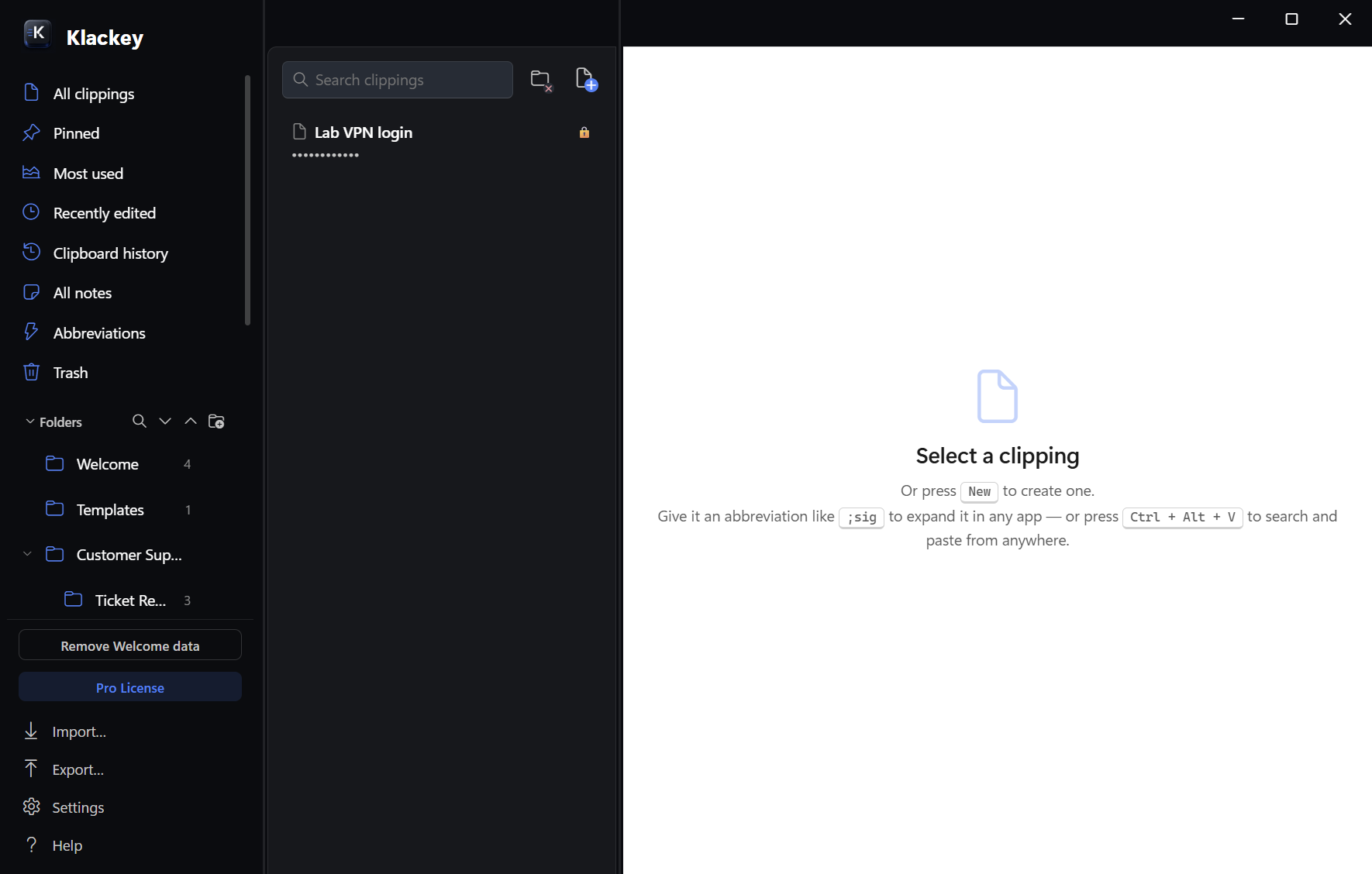
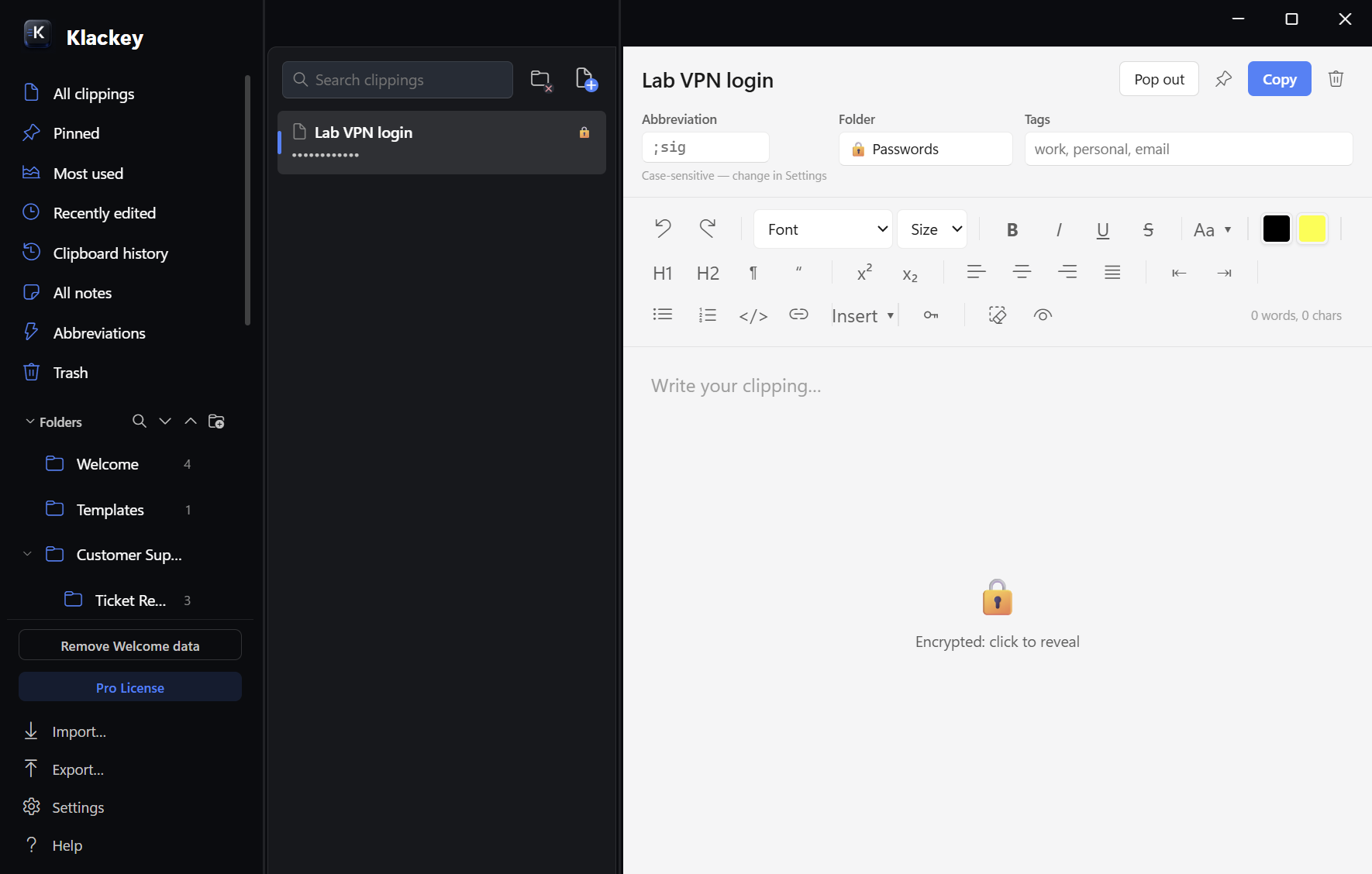
Contents show masked (••••••••) in lists, with a 🔒 badge.Opening an encrypted clipping shows "Encrypted: click to reveal" until you click it.
The folder itself is pinned to the bottom of your folder list and can't be dragged anywhere.
Not just the content: a secure clipping's name, tags, and abbreviation are encrypted too, so browsing your library or glancing at quick-paste never surfaces so much as the title of a secure entry by accident.
It's invisible to "All clippings," search-everywhere, and folder exports; you only ever see its contents by navigating into it directly.
Abbreviation paste works exactly like any other clipping by default — the secret is never recorded into Klackey's own clipboard history, whatever was on your clipboard before is restored immediately afterward, and on Windows the clipboard write is marked to keep it out of Windows Clipboard History and Cloud Clipboard sync.
Prefer a confirmation step instead? "Require a PIN to paste" (off by default) makes expanding a secure abbreviation pause for a small popup first. A correct PIN unlocks expansion for a configurable window (default 5 minutes) before it's needed again; content is never decrypted until the PIN passes, and it re-locks immediately if your computer locks or sleeps, on top of that timeout.
"Test encryption" (right there in Settings) runs a quick round-trip check, worth running once after enabling it.
Disabling it decrypts everything back to plain content first.
Only one secure folder at a time, by design, to keep it simple. For what happens to this folder when you get a new computer, see Moving to another computer.
Backups
A rotating backup (the last 7 kept) is written automatically once a day to your data folder, no action needed. Settings → Backups has "Back up now" for an on-demand one, "Restore…" to replace everything currently in Klackey with a chosen backup file (different from Import, which adds to what's already there), and "Open folder" to browse them directly. "Backup password" is only relevant if you use the secure folder — see Moving to another computer for what it's for.
Backups cover your clippings, folders, notes, and settings, but not clipboard history by default — it's a fast-changing log, not meant to be permanent. Settings → Backups → "Include clipboard history in backups" turns that on if losing your recent copy history in a crash or reinstall would matter to you; it applies to both the automatic daily backup and "Back up now."
Settings → Advanced → "Data folder" → "Open folder" shows exactly where your clippings, folders, and history actually live on disk: provided for diagnostics and your own manual, Klackey-closed backups.
Don't sync or otherwise modify these files while Klackey is running: a cloud-sync tool (Dropbox, OneDrive, iCloud Drive) writing to the live database mid-save is a real way to corrupt it. Use Export and Import/Restore to move data between computers instead.
Settings → Advanced → Danger zone → "Start fresh" permanently deletes every folder, clipping, and clipboard history entry (your theme and settings are kept). There's no undo: Trash won't help, since this skips the 30-day recovery window entirely.
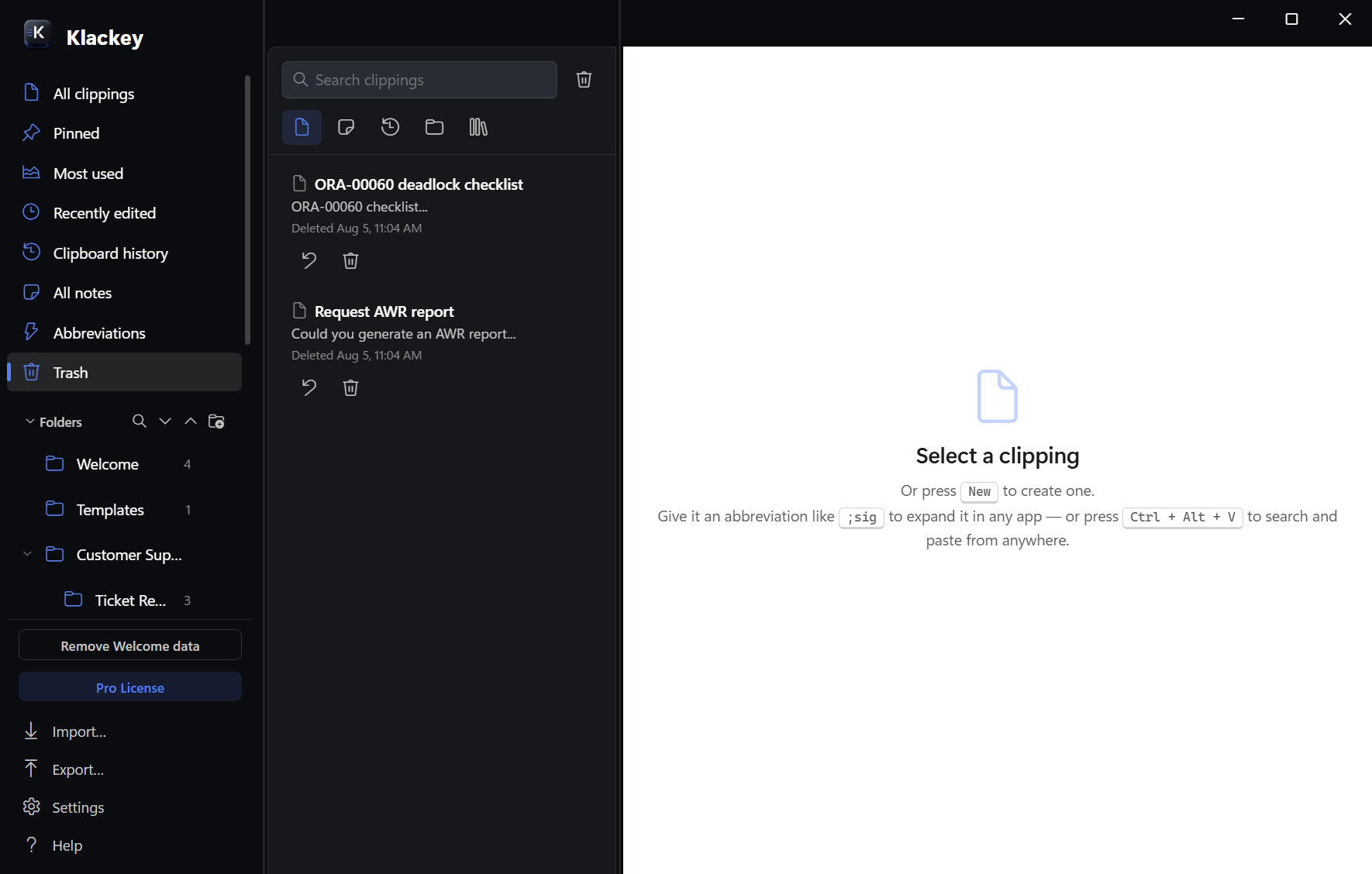
Trash and recovery
Deleting a clipping, folder, binder, or history item never removes it immediately; it moves to Trash, recoverable for 30 days.
Trash keeps everything for 30 days, with a Restore button one click away.
Trash has four tabs: Clippings, Clipboard History, Folders, and Binders, with the same Restore / Delete forever actions in each and a 30-day auto-purge. Click a row to select it (Ctrl/Cmd+click or Shift+click for more) and a bar appears above the list to restore or permanently delete the whole selection at once. Restoring a folder or binder always brings it back at the top level, even if it was nested when deleted.
Moving to another computer
Regular clippings and notes back up and restore normally on any computer: Export a full backup (or specific folders), then Import/Restore it on the new machine. This part is specifically about the secure folder, which behaves differently.
Its encryption key never leaves this specific Windows or macOS user account, which is what lets it unlock automatically with no master password to remember, but it also means a backup of this folder can't be decrypted on a new computer, after a fresh OS install, or under a newly re-created user account — unless you've set a backup password first.
Settings → Backups → "Backup password" closes that gap: set one once, and every backup from then on (manual or the automatic daily one) re-encrypts secure folder content with a portable key derived from that password, on top of the OS-tied encryption it already has. Restoring on a different device asks for the same password once; get it wrong and the restore fails cleanly rather than silently, and everything else in the backup still restores normally even if you skip it. Set it before you migrate or reinstall — it can't help a backup that was already taken without it.
Without a backup password, restoring on this same login, on this same machine, is unaffected. To confirm a backup will actually be usable elsewhere, check that you're restoring it on the same Windows/macOS account that created it (or that a backup password was set), and run Settings → Secure folder → "Test encryption" after restoring to verify either way.
If you'd still rather not rely on any of this for your most sensitive items, back them up somewhere else too (e.g. a dedicated password manager) before you migrate: once the original account is gone and no backup password was ever set, so is any way to recover that content from a Klackey backup.
Your license isn't tied to a specific machine the same way; see Two-computer use to move your license itself to a new device.
Import and sharing
Firefox Clippings
Import… in the sidebar footer → a single backup or CSV file → point it at your exported Firefox Clippings file. It always adds to what you already have; it never overwrites or removes anything. You're asked whether to keep it nested under one new folder you name yourself (good for a coworker's export) or merge straight into your existing folders (the better choice for re-importing your own material).
CSV
CSV is the catch-all for switching from another app: export or convert your old data to a CSV file with a header row, and columns named (or close to) abbreviation, text (or snippet/content), and name (or label) will be picked up automatically; you don't need an exact match or every column. A downloadable CSV template is available right on the Import screen.
Markdown, HTML, RTF, and text files
Import… → From a folder of files handles a folder full of loose files: one clipping (or note) per file, named after the file. Plain text, Markdown, RTF, and HTML are all recognized automatically by looking at each file's actual content, not just its extension, so exports from apps that name files with no extension at all (Apple Notes' own plain-text export, for one) work directly, and so does a folder of .rtf exports from a clip manager like ClipClip. Markdown syntax (headings, bullets, bold/italic, links) renders properly rather than showing literal #/* characters.
Only the folder's immediate contents are imported; subfolders are skipped. This always lands in a new folder you name, never merged into existing ones.
OneNote
Import… → From OneNote (Windows only for now) reads real OneNote files directly — no export-to-HTML detour required. In OneNote, export a notebook as a .onepkg file, or gather loose .one section files, then pick them in the file dialog that opens; you can select several at once. Each file becomes its own folder here (one per notebook section), and each page inside it becomes its own clipping or note, with formatting preserved.
Like the other folder-based imports on this page, it always lands in a new folder you name, never merged into your existing structure.
Exporting folders
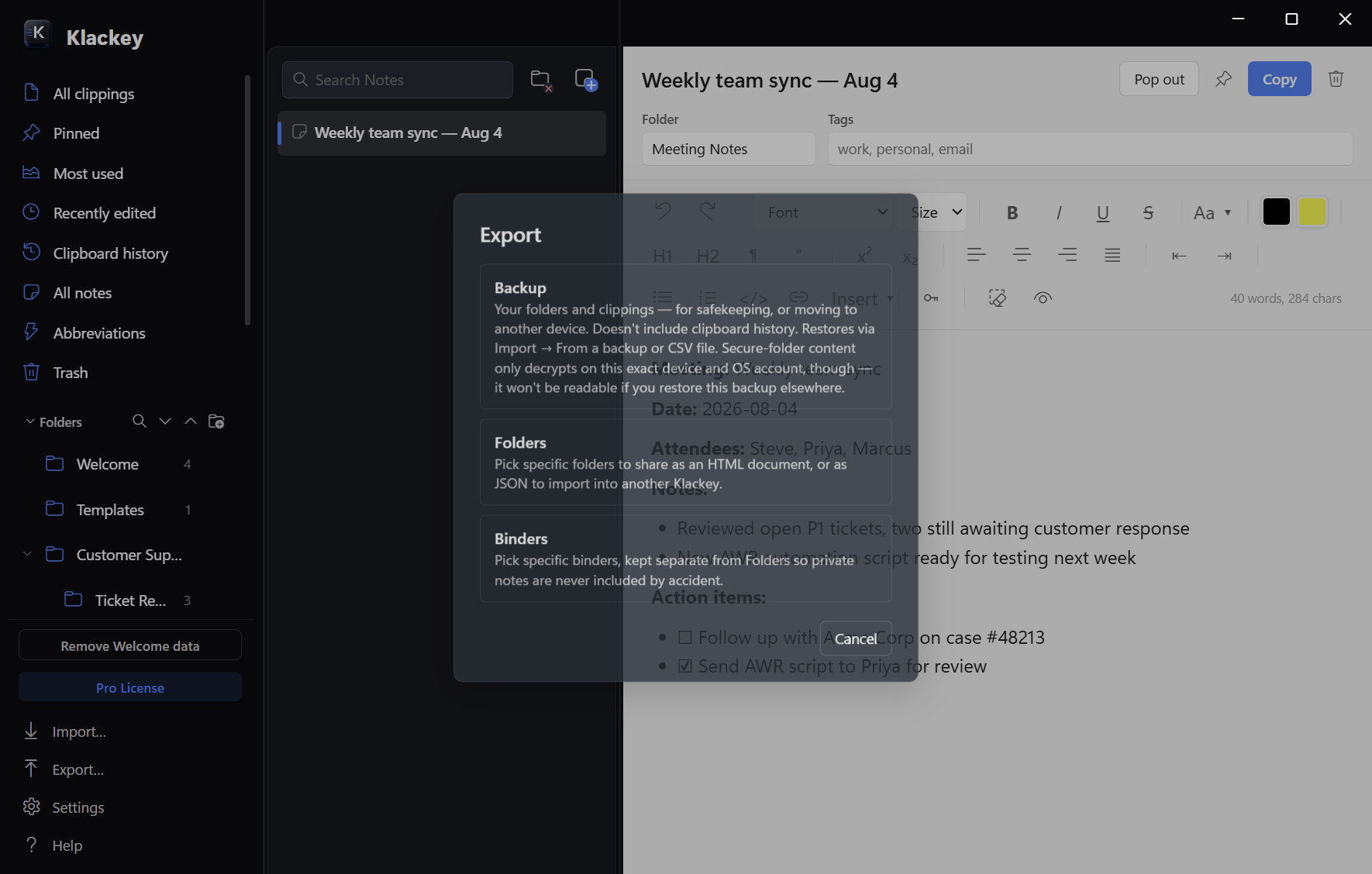
Export… in the sidebar footer opens a screen with the specific options:
Backup for disaster recovery, Folders and Binders for sharing specific content.
Backup: a full JSON backup of your clippings, folders, notes, and settings, for disaster recovery or moving to a new machine. Clipboard history is included only if Settings → Backups → "Include clipboard history in backups" is turned on (off by default; see Backups). This includes the secure folder's content in its encrypted form, which won't decrypt on a different computer, a fresh OS install, or a new user account; see Moving to another computer.
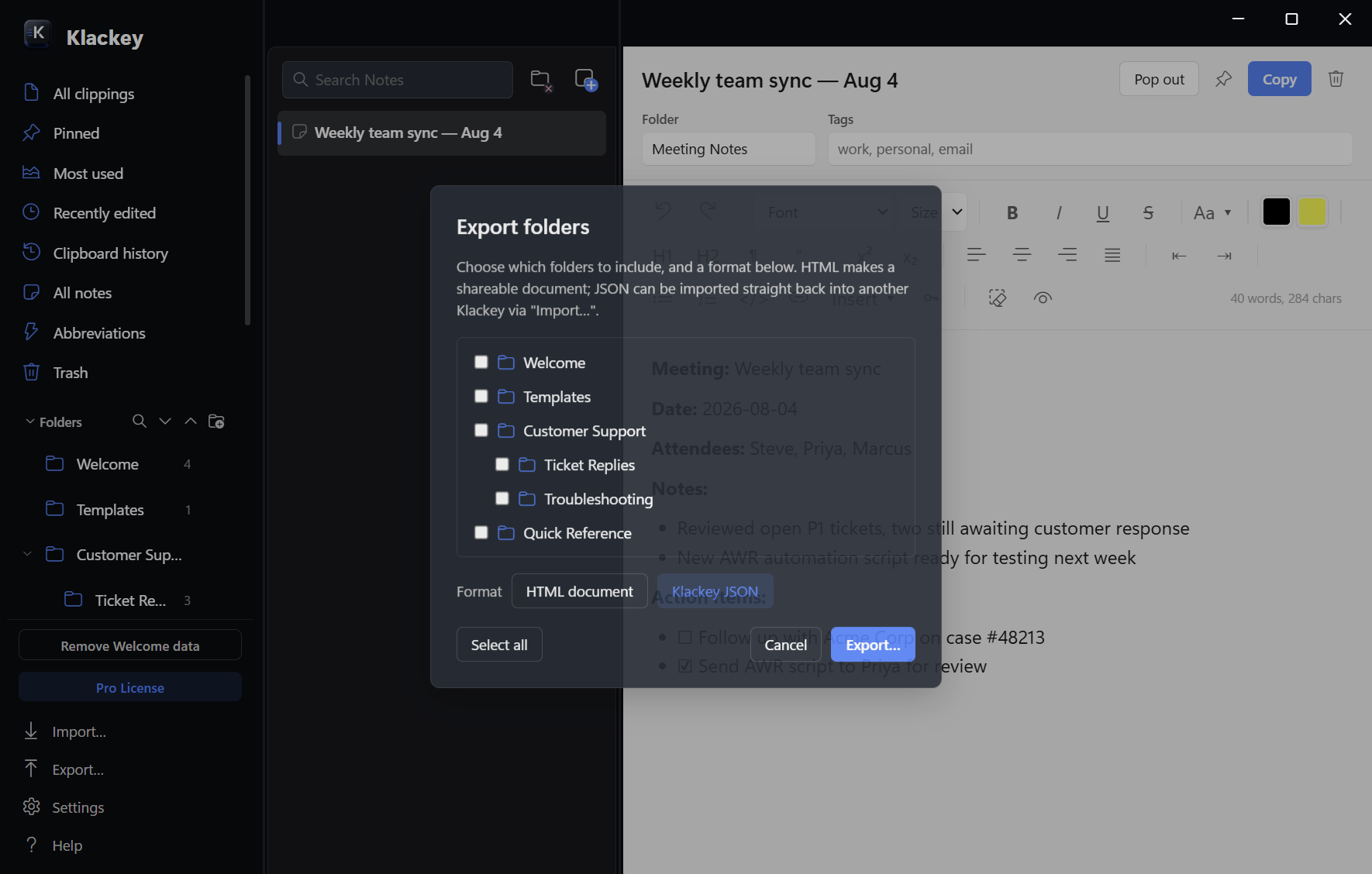
Folders: pick one or more folders and export just those, as either an HTML document (one shareable file, good for handing to a coworker) or Klackey JSON (re-importable directly via "Import…", preserving folder structure, abbreviations, and timestamps).
Pick specific folders, then choose HTML or JSON.
The secure folder never appears in either picker. When Notes/Binders is enabled, a third Binders option appears too, kept separate from Folders since binder content tends to be more personal.
Sharing with another user
To send someone a folder, use Export… → Folders, picking the Klackey JSON option; the HTML option produces a read-only document that can't be imported back in. They then use Import… on their own copy of Klackey to bring it in, nested under a new folder they name so it doesn't mix into their existing structure.
Customization
Startup and background operation
Settings → Functionality → "Launch at startup" starts Klackey automatically when you sign in — text expansion and the quick-paste hotkey are ready immediately either way. "When launching at startup" right below it decides what that automatic launch actually shows: Start minimized to tray (the default — the tray on Windows, the menu bar on macOS, without opening the main window) or Open the window normally. This only affects the automatic sign-in launch; opening Klackey yourself always shows the window regardless of either setting.
× button behavior
By default, closing the window (the × button on Windows, the red button on macOS) doesn't quit Klackey: it just hides the window, so text expansion and quick-paste keep working in the background. Klackey keeps running from the system tray (Windows) or the menu bar and Dock (macOS) either way; on macOS this already matches how most native Mac apps behave, so it may feel more surprising on Windows, where apps more often fully close.
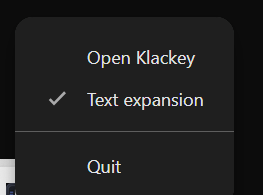
The same Settings → Functionality → "Close completely when clicking the × button" toggle controls this on both platforms: turning it on makes the close button fully quit Klackey instead, on Windows or macOS. Either way, Klackey → Quit Klackey or ⌘+Q (macOS), or right-click the tray icon → Quit (Windows), always quits completely regardless of this setting.
Right-click the tray icon (Windows) or the menu bar icon (macOS) for Quit, regardless of the close-button setting.
Keyboard shortcuts
Windows
macOS
Ctrl+Alt+V(default)
⌘+⌥+V(default)
Quick-paste popup
Ctrl+N
⌘+N
New clipping
Ctrl+F
⌘+F
Focus search
Ctrl+Z
⌘+Z
Undo
Ctrl+Y
⌘+⇧+Z
Redo
Delete
⌘+Delete
Delete the current bulk selection
Tab / Shift+Tab
Tab / Shift+Tab
Indent / outdent (in a list)
Esc
Esc
Close a dialog
The quick-paste hotkey can be changed in Settings: click the hotkey field, then press the combination you want.
Search preferences
Settings → Functionality → "Default search" controls whether typing in the search box looks everywhere or starts scoped to the folder you're browsing. While inside a folder, a small folder icon next to the search box lets you toggle this per-search, regardless of the default. "Sort alphabetically" switches folders and clippings from manual drag-to-reorder order to alphabetical by name. "Hover preview" shows a clipping's actual rich-formatted first few lines when you hover it in the list, after a short delay.
Themes and text size
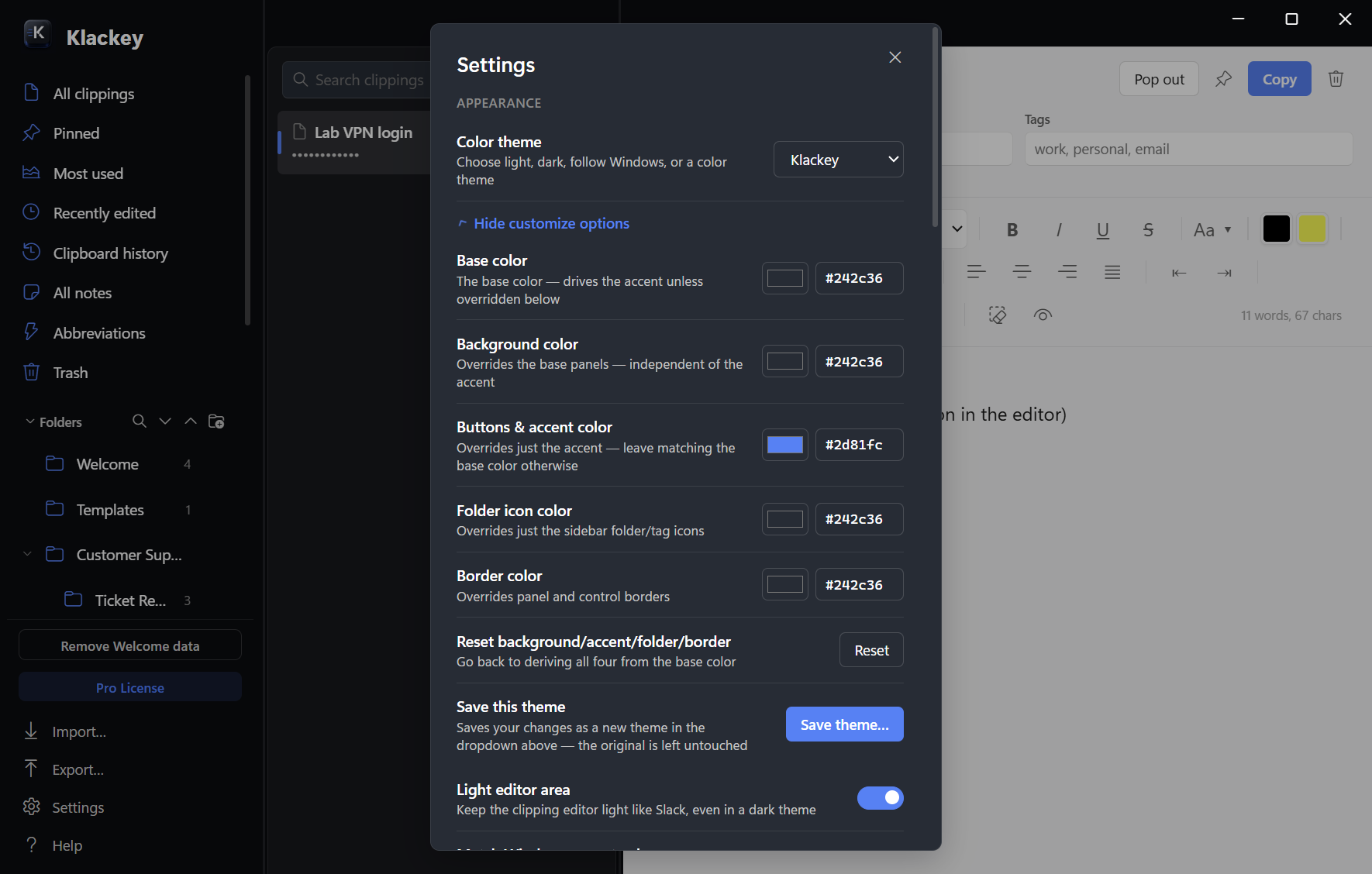
Settings → Appearance has Light, System, Klackey (the branded dark look), Dark (a plain neutral dark theme using your Windows accent color), and four bespoke color themes: Navy Blue, Forest Green, Sand, and Sky. "Light editor area" keeps just the clipping editor light even under a dark theme, Slack-style. "Match Windows accent color" (Windows only; it has no effect on macOS) follows whatever accent color Windows picks from your desktop wallpaper.
Every theme is customizable down to the base, accent, folder icon, and border colors, each with its own hex code field.
Matching an exact brand or company color? Skip the color-wheel picker: type or paste a hex code (e.g. #2d81fc) directly into the text field next to any swatch. The preview updates immediately.
Save theme… always creates a new named theme in the dropdown rather than overwriting the one you started from. Settings → Appearance → "Text size" scales the entire app uniformly, the same mechanism as a browser's Ctrl+/Ctrl- zoom.
Optional features
A few things can be switched off entirely if you don't use them:
Binders and Notes (Settings → Functionality) hides the Notes view and Binders tree from the sidebar if you only use Clippings.
Auto-hide quick views collapses the All clippings/Pinned/Most used/etc. group at the top of the sidebar down to just its heading until you hover over it.
Capture clipboard history turns off clipboard watching entirely, if you'd rather Klackey only hold what you deliberately save as clippings.
Account
Trial
14 days, full-featured, no payment card required. Settings → License shows how many days are left.
When the trial ends, nothing is deleted. Browsing, search, and exporting your existing clippings and notes keep working exactly as before. Editing and background features (clipboard capture, text expansion, quick-paste) pause until you activate a license, and pick up right where you left off once you do.
License activation
Activating a key sends only the key itself and an anonymized device identifier (not your computer's hostname or any other personal info) to Creem, Klackey's licensing partner, never any clipping or note content.
Two-computer use
One license covers up to two devices for one person at a time. Deactivate in Settings frees a slot on the old device so you can activate on a new one.
Offline check-ins
The license itself is permanent: once activated, it doesn't expire.
Requires periodic internet access: Klackey checks in with Creem roughly once every 24 hours while it's running (plus once at every launch) to confirm the license is still valid. It tolerates up to 14 days of missed check-ins (no internet, Klackey simply not opened, a network hiccup) before restricting anything: viewing and exporting your existing data always keep working regardless, but editing and background features (clipboard capture, text expansion, quick-paste) pause until a check-in succeeds again ("Check license" in Settings triggers one manually). Opening Klackey with an internet connection at least once every couple of weeks is enough to avoid this entirely.
Updates and renewals
Updates are separate from the license, and time-limited: your purchase includes 12 months of new-feature updates (the "Update Period"). Bug fixes and security patches aren't guaranteed once that window ends, though Klackey may still release one to everyone regardless.
Renewing extends the Update Period another year, entirely optional. Klackey keeps working normally on whatever version is already installed whether you renew or not. Buying a renewal gives you a code to redeem in Settings, on each device you use Klackey on.
Updates check and download silently in the background — at launch, every 12 hours, and whenever Settings opens — and install automatically the next time you quit Klackey normally, no installer to find and run yourself. Prefer to apply it right away? A "Restart & Install" button appears in Settings → Updates the moment it's ready. The sidebar footer shows the same thing as an "Update ready" pill next to the license pill, so it's easy to notice even if Settings is never opened; click it and Klackey restarts and installs immediately, exactly like the Settings button. A "See what's new" link next to the Settings button opens that release's full changelog entry before you install it. After you do install, a short popup summarizes what changed the next time Klackey opens — shown once per version, never repeated; click the version number at the bottom of Settings any time afterward to bring that same popup back up.
If an available update fixes a real security issue, Settings labels it as such instead of looking like a routine update, and you'll get a native OS notification even if Klackey's window isn't open — critical updates aren't something to leave sitting unapplied.
Settings → Updates → "Update checks" can switch this to Manual, which turns off all background checking and downloading and replaces it with an explicit "Check for updates" button you click whenever you want — nothing happens on its own in that mode. (Windows only for now; macOS updates are still a manual download.)
Troubleshooting
Abbreviation doesn't expand
Check Settings → Functionality → "Text expansion" is on.
Check the abbreviation is at least 2 characters, and that case-sensitivity matches what you typed (see Text expansion).
On macOS, confirm Klackey has the Accessibility permission (System Settings → Privacy & Security → Accessibility); without it, the system-wide keystroke watching this feature depends on can't run.
Some rich text editors with unusual focus handling don't reliably accept the simulated paste this feature uses, a limitation of that specific app, not something to fix in Klackey's settings.
Quick paste doesn't open
Check Settings → Functionality → the quick-paste toggle is on.
See Hotkey conflicts with another app: if another application already registered the same combination, Klackey's hotkey silently won't fire.
Still running after I closed it
This is expected default behavior, not a bug; see × button behavior. Turn on Settings → Functionality → "Close completely when clicking the × button" if you'd rather it fully quit, or use Klackey → Quit Klackey / ⌘+Q (macOS) / right-click the tray icon → Quit (Windows) any time.
Didn't start after sign-in
Confirm Settings → Functionality → "Launch at startup" is actually checked. On a managed/locked-down machine, Group Policy or endpoint security software can silently block an app from registering itself to launch at sign-in; the setting can look "on" in Klackey while Windows never actually applied it. If you suspect this, check with your IT department, or try toggling the setting off and back on to re-trigger registration.
Formatting disappears on paste
Settings → Advanced → "Check clipboard" shows exactly what Klackey sees the moment you check: which formats are present, and a preview of the HTML or RTF content. If it shows only plain text for something you copied with visible formatting, that's happening before Klackey ever sees it, commonly security/DLP software on managed work PCs, not something the app can work around.
Clipboard history is empty
Check Settings → Functionality → "Capture clipboard history" is on.
If your license check-in has lapsed past its 14-day grace period, background features including clipboard capture pause until it succeeds again; see License needs a check-in.
Images aren't captured
Klackey does capture copied images into clipboard history (downscaled and stored automatically). If the exact same image is still sitting on your clipboard as the last thing captured, Klackey recognizes it's unchanged and doesn't add a duplicate entry; copy something else (or the image again after copying something in between) to confirm capture is working.
Secure clipping won't restore
This is the expected limitation described in Moving to another computer: secure folder content only decrypts on the same Windows/macOS login that encrypted it. If you're restoring on that same account and machine and it's still failing, run Settings → Secure folder → "Test encryption" to check the folder's encryption is functioning correctly.
License needs a check-in
Your license has gone more than 14 days without successfully validating with Creem; see Offline check-ins. Connect to the internet and click "Check license" in Settings. Viewing and exporting your data work regardless; only editing and background features are paused until it succeeds.
A version needs renewal
You've installed a Klackey version released after your Update Period ended. Your license itself is still fully valid; this only affects eligibility for this specific build's features. Renew to unlock it, or contact Support@Klackey.com for the most recent version your existing license already covers.
Hotkey conflicts with another app
If you set the quick-paste hotkey to a combination another running application already claimed, Klackey tells you directly: a toast reads "[combination] is already used by another app, try a different combination," and the field reverts to your last working hotkey. Pick a different combination in Settings.
 Klackey Manual