Search past copies
Find text and images you copied earlier, without digging back through the app you copied them from.
 Clipboard Manager for Windows← klackey.com
Find something you copied earlier, save it for later, or turn it into a reusable shortcut. Klackey brings searchable clipboard history, reusable clippings, text expansion, notes, and OCR together in one Windows app, stored locally, not in the cloud.
Digitally signed Windows installer. This is pre-release software. Your feedback will help us prepare Klackey for its public launch.
Windows Clipboard History (Win+V) is a useful 25-item recent-history tool: you can pin entries to keep them past a restart, and optionally sync clipboard text across your devices through a Microsoft account. But it isn’t designed to become an organized, permanent working library. Klackey is: up to 2,000 locally stored history entries, permanent clippings, folders, full-text search, filters, OCR, abbreviations, Dynamic Snippets, notes, and Quick Paste.
| Windows Clipboard History | Klackey | |
|---|---|---|
| Finding entries | Recent 25-item panel | Full-text search across stored entries |
| Images | Stores supported bitmap items | Stores supported images and offers on-device OCR |
| Reusable text | Pin individual entries | Organized clippings with abbreviations |
| Changing fields | Recent clipboard workflow | Dynamic Snippets with fill-in fields |
| Storage and sync | Local, with optional Microsoft-account text sync | Local only, no account or cloud sync |
Windows Clipboard History: Recent 25-item panel
Klackey: Full-text search across stored entries
Windows Clipboard History: Stores supported bitmap items
Klackey: Stores supported images and offers on-device OCR
Windows Clipboard History: Pin individual entries
Klackey: Organized clippings with abbreviations
Windows Clipboard History: Recent clipboard workflow
Klackey: Dynamic Snippets with fill-in fields
Windows Clipboard History: Local, with optional Microsoft-account text sync
Klackey: Local only, no account or cloud sync
Windows Clipboard History details per Microsoft’s own documentation as of September 2026. Features and behavior can change on either side.
Find text and images you copied earlier, without digging back through the app you copied them from.
Keep the entries you use often instead of letting them fall out of history.
Organize clippings the way you organize anything else you come back to.
Search your library from supported applications with a keyboard shortcut, then paste straight into the field you were just in.
Turn a clipping into a short trigger, like ;license, that expands into the full text in most everyday Windows applications.
Keep longer reference material organized and searchable alongside your clippings.
Narrow history to a date range or images only, then sort newest or oldest first, right from the toolbar.
Turn on duplicate removal in Settings, and copying something already in history keeps just the latest copy, not both.
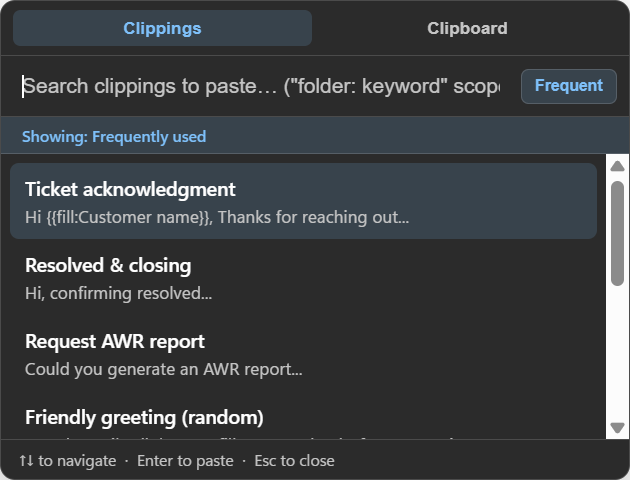
Open Klackey’s quick-paste search with a global shortcut, find the clipping you need, and paste it directly into the active application. No digging back through old emails, documents, browser tabs, or chats.
Thanks for reaching out! Here’s how to activate your Klackey license: open Klackey, go to Settings, and enter the key from your purchase email.
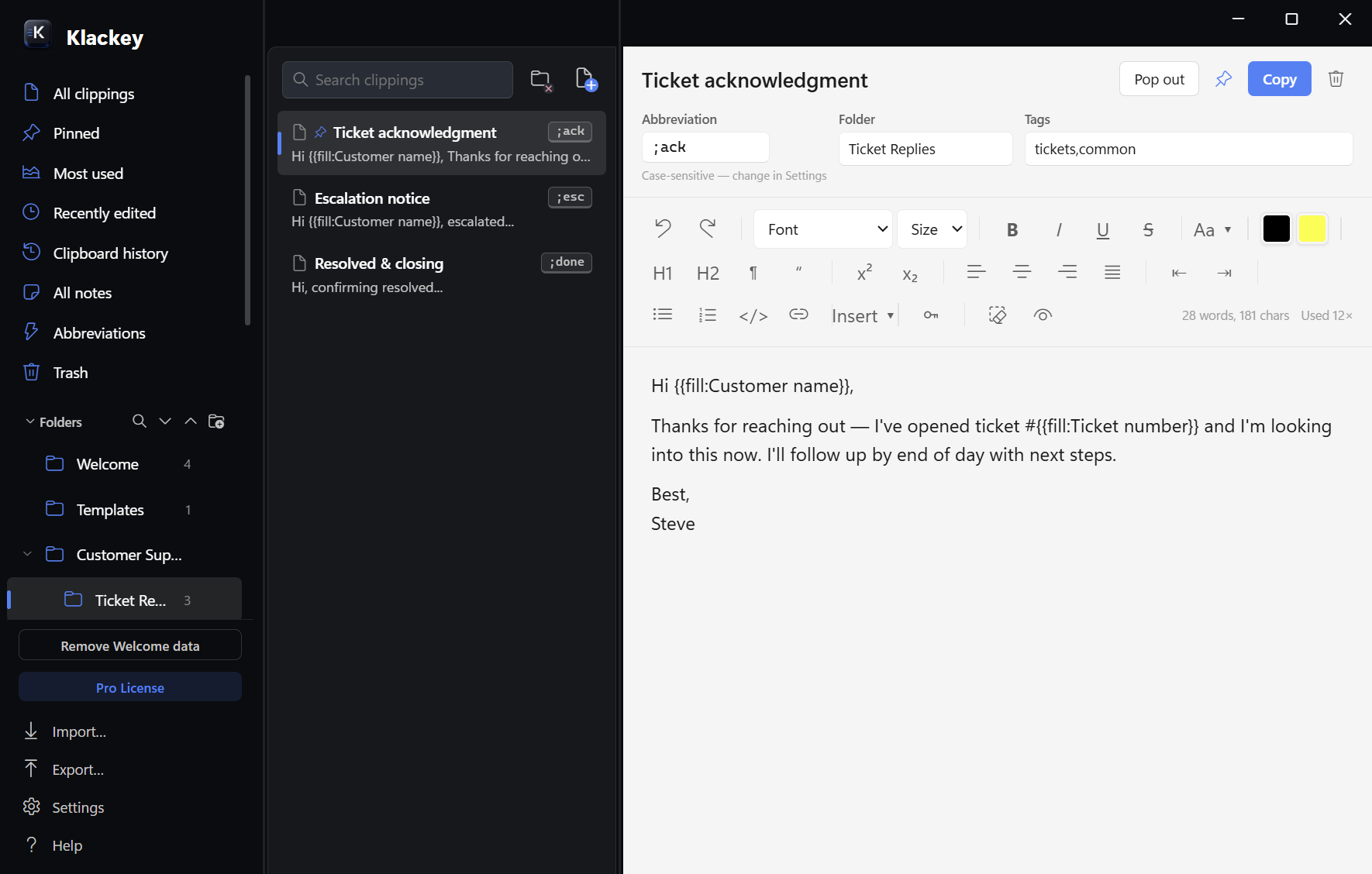
Save it as a permanent clipping, give it an abbreviation, and reuse it across supported Windows applications. ;license can expand into a complete, formatted customer response, typed once and used for as long as you need it.
Klackey keeps your last 2,000 clipboard entries searchable and organized, including up to 50 recent images. Filter history to a date range like today, this week, or this year, switch to images only, and sort newest or oldest first, all from the history toolbar. Turn on duplicate removal in Settings and copying something already in history keeps just the latest copy instead of both.
Klackey’s encrypted Secure Folder keeps passwords and other sensitive reusable text out of normal clipboard history and search. Content stays masked throughout Klackey until you choose to reveal it, and typing the abbreviation pastes it directly into your destination field without it ever passing through Klackey’s own visible clipboard history, though the destination field itself will of course show whatever you paste into it, the same as any other paste.
Klackey combines clipboard history, quick paste, reusable text and image clippings, text expansion, Dynamic Snippets, notes and binders, Screenshot capture and OCR, local backups, import and export, and the Secure Folder, all in one local Windows app.
Customize how this feature works, including how much history Klackey keeps, whether duplicates are removed automatically, and your own quick-paste hotkey.
Windows Clipboard History (Win+V) keeps up to 25 entries, clears unpinned items on restart, and can optionally sync clipboard text across devices through a Microsoft account. Klackey adds a much larger, locally stored working library: up to 2,000 history entries, permanent organized clippings, full-text search, folders, abbreviation-based text expansion, and a global quick-paste shortcut that works the same way across supported Windows applications.
Yes. Klackey records supported clipboard images alongside text, and Screenshot + OCR can capture part of your screen, save it as a clipping, and pull out its text on-device.
Up to 2,000 recent entries, including up to 50 images, kept locally and fully searchable. You can filter history to a date range or images only, sort it newest or oldest first, and optionally turn on automatic duplicate removal in Settings.
No. Klackey stores your clipboard history, clippings, and notes locally on your computer. No account is required to use the app, and sensitive entries can go in the encrypted Secure Folder instead of regular history.
Yes. Klackey clippings are stored as both HTML and plain text, so you can paste rich formatting into apps that support it, or paste clean plain text when you don't want the original formatting.
Yes, Klackey runs on both Windows 10 and Windows 11.
Nothing is deleted. You can still open Klackey and browse, search, and export everything you've created. Editing and background features (clipboard capture, text expansion, quick paste) pause until you activate a license, and pick up right where you left off once you do.
Not by default. Klackey's automatic local backups always include your clippings, folders, and notes; the rolling clipboard history log is left out unless you turn on Settings, Backups, "Include clipboard history in backups" (off by default, since history is meant to be a fast-changing record, not a permanent archive). Turn it on and every future backup includes it too, merged back in on restore instead of duplicated. Either way, if there's something in your history worth keeping for certain, save it as a clipping and it'll be organized, searchable, and included in every backup regardless.
Still have a question? Visit Klackey Support.
No account or credit card is required. Klackey Pro is a one-time purchase covering up to two personal computers, and works with either the Windows or macOS version.
Download for Windows · Free for 14 daysNo credit card required